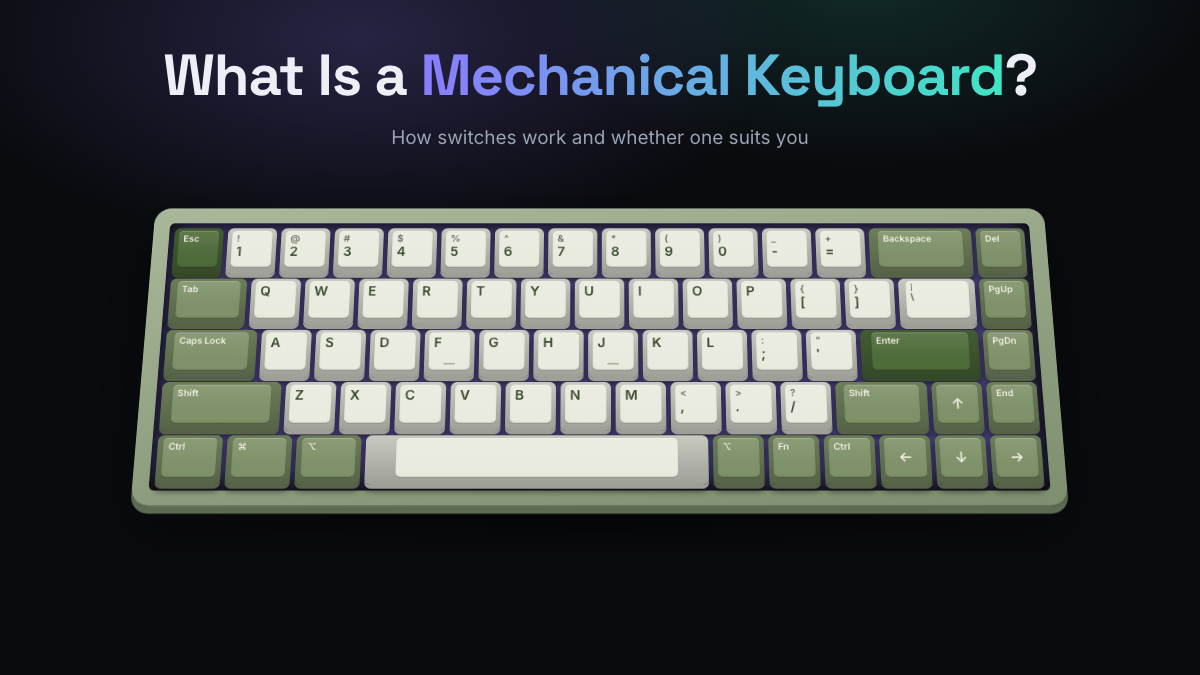
A mechanical keyboard is a keyboard where every key sits on its own physical switch, a small spring-loaded mechanism that registers the keypress and then pushes the key back up. A regular keyboard, by contrast, uses one shared rubber or membrane sheet under all the keys. That single difference is what gives a mechanical keyboard its crisp feel, its distinctive sound and its long life.
So is all the fuss real? The short answer: you get a choice of how every key feels and sounds, parts you can swap or repair, and a board that can outlast several cheap ones. The trade-offs are a higher starting price, more noise and a bit more weight. This guide explains how the switches work, how they compare with regular keyboards, who benefits most and what to pick first.
Key Takeaways
- A mechanical keyboard has an individual switch under each key, instead of one shared rubber dome sheet.
- Switches come in three main feels: linear (smooth), tactile (a bump) and clicky (a bump plus an audible click).
- Main benefits: consistent feel, longer life, repairable parts and deep customization.
- Main drawbacks: higher cost, more noise and more weight than a basic membrane board.
- Beginners do best with a hot-swappable TKL or 75% board, so switches can be changed later without soldering.
- You can hear how switch types and build choices change the sound in the KeySim simulator before spending anything.
| Feature | Mechanical keyboard | Regular (membrane) keyboard |
|---|---|---|
| What’s under each key | Its own switch with a spring and stem | A shared rubber dome sheet over membrane layers |
| Feel | Consistent, with linear, tactile or clicky options | Soft and often described as mushy |
| Sound | Clacky to thocky, tunable with foam, lube and keycaps | Quiet and muted |
| Lifespan | Major switches rated for 50 to 100+ million presses | Usually shorter; domes wear and keys go uneven |
| Repair and upgrades | Swap keycaps, switches (on hot-swap boards), cables | Usually replaced, not repaired |
| Typical price | Under $50 for entry boards, $150 to $250 for premium | Often well under $30 |
Mechanical Keyboard Definition: What Is a Mechanical Keyboard?
In plain terms, a mechanical keyboard is any keyboard that uses a separate mechanical switch for each key. Press a key and a plastic stem slides down inside the switch, a spring compresses, and an electrical contact (or on some newer boards, a magnetic or optical sensor) tells the computer the key was pressed. Let go and the spring returns the key to the top.
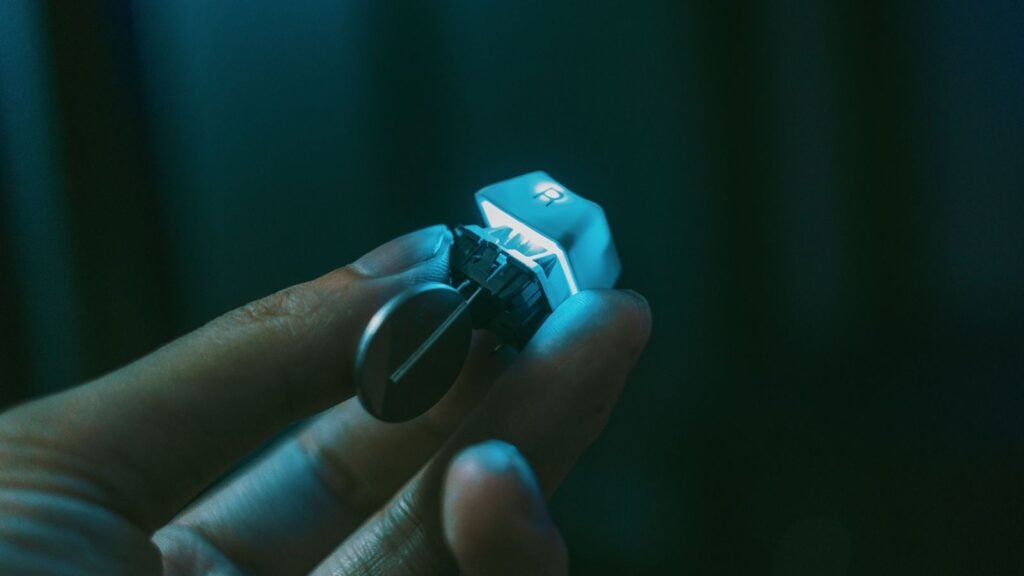
People often mix up mechanical keyboards and gaming keyboards. They overlap but aren’t the same thing. Plenty of gaming keyboards are mechanical, and plenty of mechanical keyboards are plain office boards. The switch is the defining part, not the RGB lighting, the brand or the size.
The Parts of a Mechanical Keyboard
A mechanical keyboard is built in layers. Knowing them makes product listings much easier to read.
- Switches: the mechanism under each key. Most follow the “MX-style” design popularized by Cherry, with a cross-shaped stem that keycaps clip onto.
- Keycaps: the plastic caps you touch. ABS is smooth and can turn shiny over time; PBT (polybutylene terephthalate) is a harder plastic with a slightly textured, matte feel that resists shine.
- Plate: a sheet of metal or plastic that holds the switches in place. Aluminum and steel feel firm; polycarbonate and FR4 feel softer and change the sound.
- PCB: the printed circuit board that reads every switch. On a hot-swap board, the PCB has sockets so you can pull switches out and push new ones in without soldering.
- Stabilizers: small wire-and-housing assemblies under long keys (spacebar, Shift, Enter, Backspace) that stop them wobbling or rattling.
- Case and mount: the shell, plus the way the plate attaches to it. A gasket mount suspends the plate on soft strips of foam or rubber, which gives a little cushion and a softer, deeper sound.
- Foam: optional layers inside the case that fill empty space and cut hollow, ringing noise.
How a Mechanical Keyboard Works
Every keypress on a mechanical keyboard is a tiny, repeatable mechanical event. Because each key has its own switch, the feel is the same whether you hit a key in the center or on the edge, and the key can register before it hits the bottom.
How Switches Create the Click and Feel
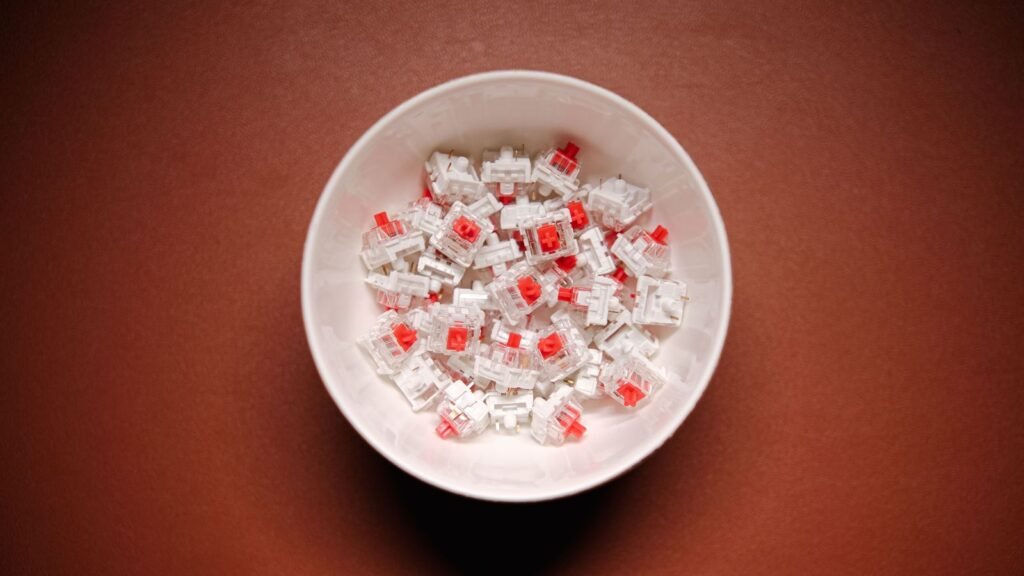
Here’s what happens inside a typical MX-style switch when you press a key:
- Your finger pushes the keycap, which pushes the switch’s stem down into the housing.
- The spring compresses, which sets how heavy the key feels. Switch weight is measured in grams or centinewtons (cN).
- At the actuation point the metal contacts inside touch and close the circuit, and the keyboard sends that key to your computer. On the Cherry MX2A Red, for example, Cherry lists 2.0 mm of pre-travel out of 4.0 mm total travel and a 45 cN actuation force.
- You can keep pressing to “bottom out” against the housing, but you don’t have to. Light typists learn to release just after actuation.
- You let go, the spring pushes the stem back up, and the contacts separate so the key can fire again.
The shape of the stem is what makes switches feel different. A smooth stem gives a linear press. A small bump on the stem legs creates a tactile bump you can feel around the actuation point. Clicky switches add a part that snaps, which makes an audible click. Cherry’s MX Blue is the classic example.
| Switch type | How it feels | How it sounds | Common examples | Good for |
|---|---|---|---|---|
| Linear | Smooth from top to bottom, no bump | Quiet to medium, a clean clack or thock | Cherry MX Red, Gateron Jupiter Red | Gaming, fast and light typing |
| Tactile | A noticeable bump near actuation | Quiet to medium | Cherry MX Brown, Gateron Jupiter Brown | Typing, mixed use, first board |
| Clicky | A bump plus a sharp click | Loud and high-pitched | Cherry MX Blue | Solo typing where noise isn’t an issue |
| Magnetic (Hall effect) | Usually linear, with adjustable actuation | Similar to linear | Switches in boards like the Wooting 80HE | Competitive gaming |
The easiest way to understand these differences is to hear them. You can hear linear vs tactile switches side by side in KeySim, then open the switch guide table to compare all 20 switch sounds.
Newer Switch Technologies
Not every mechanical-style board uses metal contacts. Hall effect (magnetic) switches put a magnet in the stem and a sensor on the PCB, so the board knows exactly how far the key is pressed. That lets you set the actuation point yourself. The Wooting 80HE lets you set each key anywhere from 0.1 mm to 4 mm and supports rapid trigger, where a key resets the instant it starts moving back up. Optical switches use a beam of light instead of contacts. Both are popular with competitive gamers.
What Else Shapes the Sound
The switch is only part of the sound. The plate, case, mount style, keycap material, foam, lube and stabilizers all shape whether a board sounds high and clacky or low and “thocky.” A metal plate in a hollow case rings more; a gasket mount with foam and PBT keycaps sounds deeper and softer. Read our breakdown of what changes keyboard sound, then flip those same build options in the simulator to hear each change on its own.
Mechanical Keyboard vs Regular Keyboard
The question “what is a mechanical keyboard vs regular keyboard” really comes down to what sits under the keycaps. Most cheap desktop keyboards are membrane keyboards: a rubber dome sits under each key, and pressing it squeezes two thin plastic sheets together to complete a circuit. Laptops mostly use scissor switches, a low-profile version of the same idea with a small hinge to keep the key level.
Membrane boards are quiet, light and inexpensive, and for plenty of people they’re perfectly fine. The downsides show up over time. Rubber domes usually need a full press to the bottom to register, the feel varies across keys, and as domes wear the keys start to feel uneven. When a membrane board fails, you generally replace the whole thing.
A mechanical board registers partway through the press, feels the same on every key and lets you replace the part that broke. That’s the core of the difference: a membrane keyboard is a single sealed product, while a mechanical keyboard is a set of parts you can tune.
Benefits of Mechanical Keyboards
The benefits of a mechanical keyboard are practical, not just aesthetic. Here are the advantages that matter most in daily use.
- Consistent feel on every key: each switch is built to the same spec, so the key in the corner feels like the key in the middle.
- Choice of feel: linear, tactile or clicky, light or heavy. You pick the switch that suits your hands instead of accepting whatever dome came in the box.
- Less bottoming out: keys register before they hit the bottom, so with practice you can type with a lighter touch.
- Durability: big switch makers rate their switches in the tens of millions of presses. Cherry rates its MX2A Red and Brown at over 100 million keystrokes and the clicky MX Blue at over 50 million.
- Repairable and upgradeable: a dead switch, a broken keycap or a worn cable can be replaced. On hot-swap boards, changing every switch takes an evening with a cheap switch puller.
- Customization: keycaps, switches, layouts and lighting can all change. Many boards also support remapping software such as QMK or VIA, which lets you move keys or add shortcuts.
- Gaming responsiveness: many mechanical boards offer full N-key rollover (every key registers even when you press many at once) and a 1000 Hz polling rate, meaning the board reports to your computer about once every millisecond.
The Drawbacks to Weigh
Mechanical keyboard advantages come with honest trade-offs. They cost more than a basic membrane board. They’re louder, especially clicky switches, which can bother coworkers, roommates and anyone on your video calls. They’re heavier, and some have a taller profile that feels better with a wrist rest. And the hobby can become a money pit once you start collecting keycap sets.
If noise is a worry, a linear or silent switch with foam and a gasket mount can be surprisingly quiet. Try the quieter builds in the simulator first so you know what to look for.
Who Should Buy One
You don’t need a mechanical keyboard, but some people get far more out of one than others. If you type or game for hours a day, the upgrade is usually worth it.
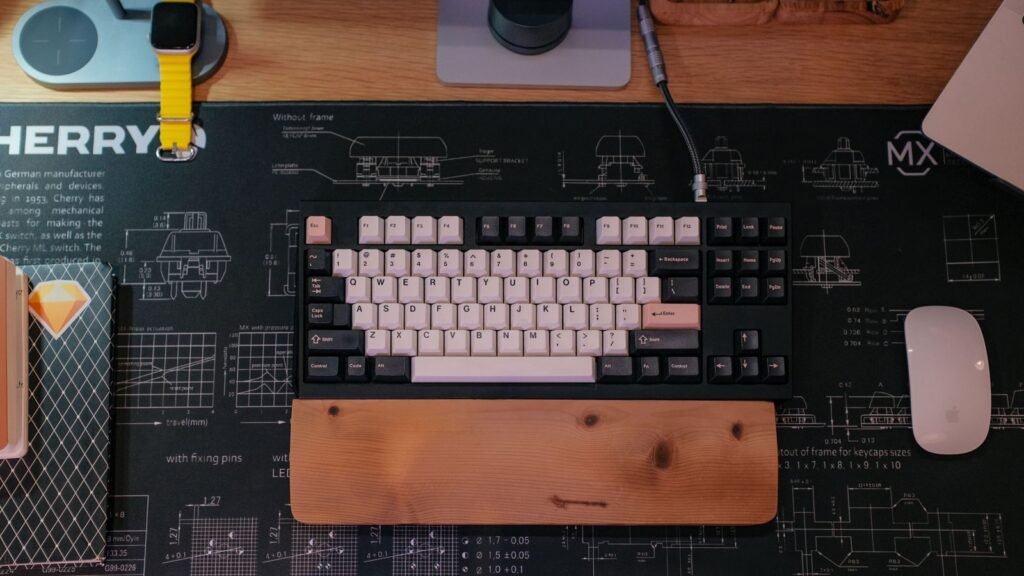
A mechanical keyboard is a strong fit for:
- Writers, students and office workers who type all day and want a consistent, comfortable keypress. Tactile switches are a popular starting point.
- Programmers who value remapping, layers and macros, and often prefer compact layouts that keep the mouse close.
- Gamers who want fast, reliable input, full rollover and options like adjustable actuation or rapid trigger.
- Tinkerers who enjoy modding: swapping switches, lubing stabilizers, adding foam and chasing a particular sound.
- Anyone tired of replacing cheap keyboards who would rather buy one board and repair it.
It may not be the right buy if you work in a shared, quiet space and can’t control the noise, need something ultra-thin to carry in a laptop bag, or type only a few minutes a day. In those cases a good low-profile or membrane board is a sensible choice.
Not sure yet? Take the online typing test with a few different switch sounds and see which one makes you want to keep typing.
Next Steps: Sizes, Switches, and Best Picks
Once you know you want one, three decisions shape the whole buying guide: size, switch and features. Get those right and almost any reputable board will make you happy.
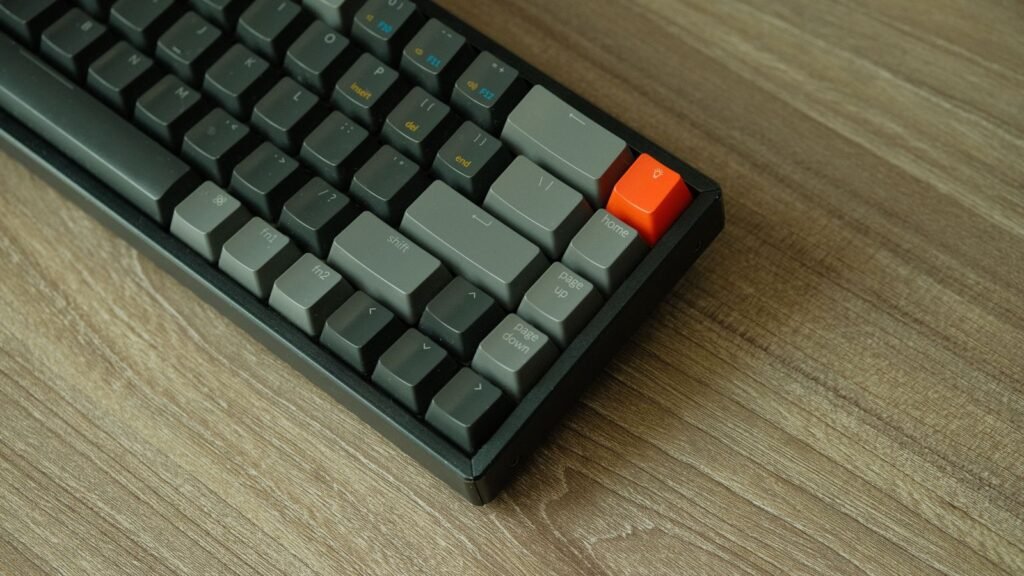
Choose a Size
Keyboard sizes are named by roughly what share of a full keyboard they keep. Smaller boards free up desk space for your mouse but move some keys to a function layer.
| Size | What’s included | Approx. keys | Best for |
|---|---|---|---|
| Full-size (100%) | Everything, including the number pad | 104 to 108 | Spreadsheets, data entry |
| TKL (80%) | Drops the number pad, keeps arrows and F-row | 87 to 88 | Most people, gaming, first board |
| 75% | TKL squeezed together, keeps F-row and arrows | About 84 | Small desks, typing, coding |
| 65% | No F-row, keeps arrows | About 68 | Compact setups, travel |
| 60% | No F-row, no arrows, no nav cluster | About 61 | Minimalists, competitive gaming |
TKL (tenkeyless) simply means a keyboard without the ten-key number pad. For a first board, TKL or 75% is the safest pick: you keep the keys you use daily and gain room for your mouse.
Choose a Switch
How to choose a switch comes down to what you do most and how much noise you can make.
- Mostly typing, some gaming: start with a tactile switch for clear feedback.
- Mostly gaming: a light linear switch, or a magnetic board if you want adjustable actuation.
- Shared room or calls: a linear or silent switch, and avoid clicky ones.
- Unsure: buy a hot-swap board, so a wrong guess costs you a set of switches instead of a whole keyboard.
Before you order, use the switch sound comparison to shortlist two or three switch types by ear.
Features Worth Paying For
- Hot-swap sockets: the single most useful feature for beginners.
- PBT keycaps: they stay matte and resist shine far longer than ABS.
- A gasket mount or internal foam: a softer feel and a deeper sound straight out of the box.
- Remapping support: QMK or VIA lets you change any key without vendor bloatware.
- Wireless, if you need it: a 2.4 GHz dongle for low-latency gaming, Bluetooth for switching between devices.
Best Picks to Start Your Research
How we picked: KeySim has not hands-on tested these keyboards. The picks below are research-based, chosen from manufacturer specifications, switch and build choices, and the consensus of reputable reviews and owner feedback. Prices are rough tiers and change often.
| Keyboard | Size | Switch type | Connectivity | Why it stands out | Price tier |
|---|---|---|---|---|---|
| Keychron V1 Max | 75% | Gateron Jupiter (linear or tactile), hot-swap | Wired, 2.4 GHz, Bluetooth | Gasket mount, PBT keycaps, volume knob, QMK and VIA | Around $100 |
| Logitech G PRO X TKL LIGHTSPEED | TKL | Linear, tactile or clicky | LIGHTSPEED wireless | Wireless tenkeyless from a major gaming brand | $150 to $250 |
| Wooting 80HE | 80% (compact TKL) | Magnetic Hall effect | Wired | Per-key actuation from 0.1 to 4 mm, rapid trigger | Around $200 |
The Keychron V1 Max is the all-rounder: a compact 75% board with hot-swap sockets, a gasket mount and three connection modes, which makes it an easy first upgrade for typing and casual gaming. The Logitech G PRO X TKL LIGHTSPEED suits gamers who want a wireless TKL and a choice of tactile, linear or clicky switches. The Wooting 80HE is the specialist pick for competitive players who want magnetic switches they can tune key by key.
Setup and Maintenance Tips for a New Mechanical Keyboard
A mechanical keyboard rewards a little care. These setup tips and maintenance habits will keep it feeling new for years.
Setup Tips
- Set the height and angle: many people type more comfortably with the feet folded and a wrist rest, since mechanical boards are taller than laptop keyboards.
- Update firmware and install the remapping tool the manufacturer recommends, before you start customizing.
- Remap one thing at a time: Caps Lock to Ctrl or Escape is a popular first change.
- Check the stabilizers: if the spacebar rattles, a little dielectric grease or stabilizer lube on the wires often fixes it.
- Give your hands a week: a new switch type can feel strange for a few days before it clicks.
Maintenance Tips
- Weekly: turn the board over and shake out crumbs, or use a soft brush between keys.
- Monthly: wipe keycaps with a slightly damp microfiber cloth. Keep liquids away from the switches.
- Every few months: pull the keycaps with a keycap puller and wash them in warm, soapy water. Let them dry completely before refitting.
- When a key acts up: on a hot-swap board, swap that one switch; on a soldered board, try compressed air first.
For a step-by-step routine, see our guide on how to clean a mechanical keyboard. More setup and buying guides live in the KeySim Guides section.
Frequently Asked Questions
Are Mechanical Keyboards Worth Buying?
For most people who type or game daily, yes. You get a consistent feel, a choice of switch, parts you can repair and a board that can last many years, which often makes it cheaper over time than replacing budget keyboards. If you type rarely or need silence, a good membrane or low-profile keyboard may serve you just as well.
How Long Do Mechanical Keyboards Last?
A well-made mechanical keyboard can last a decade or more with basic care. Major switch makers rate their switches in the tens of millions of presses; Cherry, for example, rates its MX2A Red at over 100 million keystrokes. The weak points are usually cables, stabilizers or keycaps, and those are replaceable.
What is the difference between a mechanical keyboard and a regular keyboard?
A regular keyboard uses one rubber dome sheet over a membrane to register keys, while a mechanical keyboard has a separate spring-loaded switch under every key. That makes mechanical boards more consistent, more durable and easier to customize, though usually louder and more expensive.
Are mechanical keyboards loud?
It depends on the switch and build. Clicky switches such as Cherry MX Blue are loud, while linear and silent switches in a foam-filled, gasket-mounted case can be fairly quiet. You can compare quiet and loud builds in the KeySim simulator before buying.
Are mechanical keyboards better for typing?
Many typists find them more comfortable because keys register before bottoming out and every key feels the same. A tactile switch gives clear feedback that helps some people type with a lighter touch. Comfort is personal, so try a few switch types if you can.
What does hot-swap mean on a mechanical keyboard?
A hot-swappable keyboard has sockets on its circuit board, so you can pull switches out and push new ones in without soldering. It’s the best feature for beginners because you can change the feel and sound of your board later without buying a new one.
What size mechanical keyboard should a beginner get?
A TKL (tenkeyless) or 75% board suits most beginners. Both keep the arrow keys and function row but drop the number pad, giving your mouse more room. Choose full-size only if you enter a lot of numbers.
Open the KeySim simulator, pick a linear, a tactile and a clicky switch in turn, then add foam and PBT keycaps to hear how each build choice changes the sound before you choose your first mechanical keyboard.