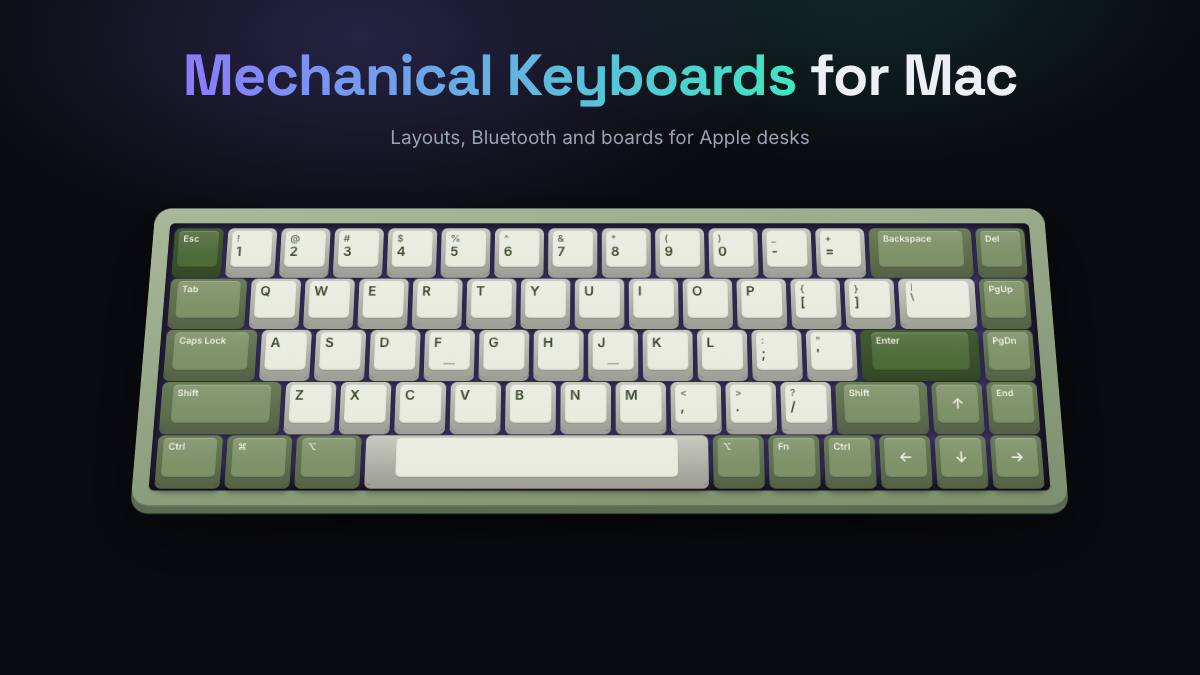
Almost any USB or Bluetooth keyboard works on a Mac, but a mechanical keyboard for Mac gets the small things right: Command and Option keys in Apple’s order, a function row that controls brightness and media out of the box, and wireless pairing that hops between a MacBook, an iPad and an iPhone. Boards like the Logitech MX Mechanical Mini for Mac, the Keychron K2 Max and the Kinesis mWave for Mac are built around those details, so you don’t spend your first evening remapping keys.
This guide explains what separates a true Mac mechanical keyboard from a Windows board with a sticker on it, which features matter on an Apple desk, and which real models suit different kinds of Mac users. It’s a category guide, not a ranking, so you can match a board to how you actually work.
Key Takeaways
- Every standard mechanical keyboard types on macOS, but Mac layouts put Command next to the space bar and print Mac legends on the modifiers.
- Look for a hardware Mac/Windows toggle if you share one board between a Mac and a PC.
- Bluetooth with three or more device slots suits a MacBook plus iPad desk; a 2.4 GHz dongle or cable gives lower latency.
- Low-profile switches feel closest to a MacBook keyboard; full-height switches offer more choice and sound.
- Any board can be fixed in macOS: System Settings lets you swap Command and Option per keyboard.
- A 75% layout keeps the function row and arrows while staying close to MacBook width.
| Model | Type | Switch Options | Mac Details |
|---|---|---|---|
| Logitech MX Mechanical Mini for Mac | Compact, low profile | Tactile Quiet (fixed) | Mac legends, 3 Bluetooth devices, Logi Options+ |
| Keychron K2 Max | 75%, full height | Keychron Banana tactile, hot-swap version available | Mac/Windows toggle, Mac and Windows keycaps, QMK |
| NuPhy Air75 V3 | 75%, low profile | Gateron low-profile, hot-swappable | macOS support, 2.4 GHz, Bluetooth and wired |
| Kinesis mWave for Mac | Curved ergonomic | Gateron low-profile Quiet Red or Brown | 12 macOS hotkeys, Clique web remapping |
| Lofree Flow 2 | 65%, 75% or 96%, low profile | Three Lofree switch types | Aluminum, gasket mount, QMK and VIA |
| Das Keyboard 4 Professional for Mac | Full-size, wired | Cherry MX family | Mac layout, USB hub, volume knob |
What Makes a Mechanical Keyboard for Mac Different
A mechanical keyboard uses an individual switch under every key instead of a rubber dome sheet. That part is the same on any platform. What changes for Mac users is the layer on top: legends, key order, firmware shortcuts and how the board behaves when macOS talks to it.
A Windows-first board will still type letters on a Mac. The problems are smaller and more annoying: the Windows key acts as Command but sits where your thumb expects Option, F-keys send F1 to F12 instead of brightness and volume, and the Print Screen and Menu keys do nothing useful. A Mac-ready board fixes these in hardware, so it works the same on every Mac you plug it into.
Mac Layouts, Function Rows, and Shortcuts
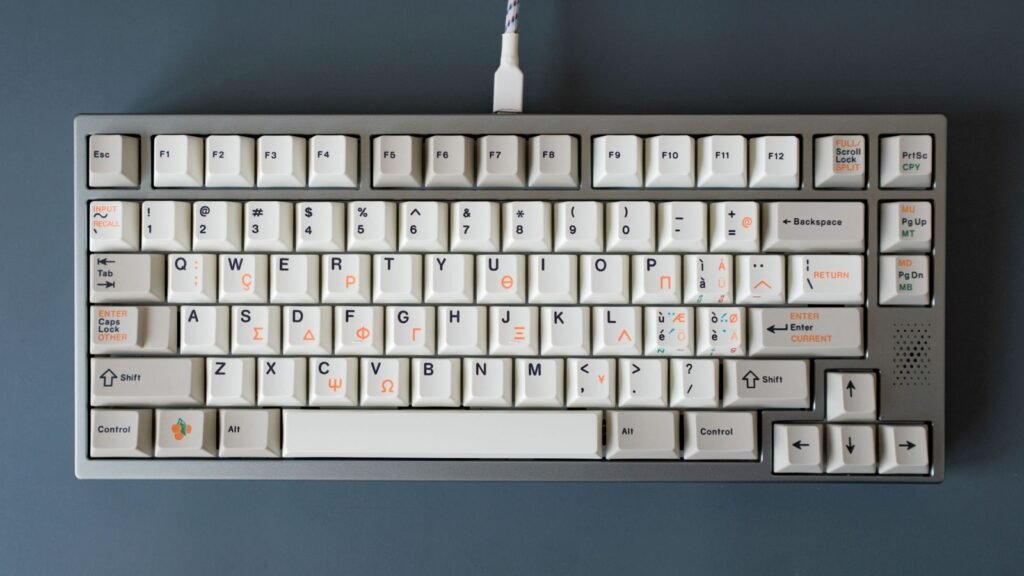
The biggest difference is the bottom row. On Apple’s own keyboards it reads Control, Option, Command, space bar, Command, Option from the left. Most PC boards read Ctrl, Win, Alt, space bar. Your thumb hits the key beside the space bar for every Command shortcut (copy, paste, switch apps), so getting that key right matters more than anything else.
Command Key Placement
If you want a mechanical keyboard for Mac with the Command key printed and placed correctly, look for “Mac layout” in the specs, not just “Mac compatible.” The Logitech MX Mechanical Mini for Mac and the Das Keyboard 4 Professional for Mac ship with Mac legends only. Keychron boards like the K2 Max include both Mac and Windows keycaps in the box, so you can fit the correct legends yourself.
Function Row and Media Keys
On a Mac-ready board, the top row maps to the same things your MacBook does: screen brightness, Mission Control, media playback and volume. You hold Fn to get true F1 to F12, which matters for apps like Xcode or Final Cut that use function keys. The Kinesis mWave for Mac, for example, builds in 12 macOS hotkeys and puts F1 to F12 on its Fn layer, according to Kinesis’s mWave for Mac page.
Windows Toggle and Multi-OS Boards
Many people own a work PC and a personal Mac. Multi-OS boards solve this with a physical slider or key combo that flips the layout between macOS and Windows. Keychron’s Max series boards have a system toggle and store a separate layout for each operating system, so you can remap one without disturbing the other.
If a board has no toggle, check whether its firmware remembers an OS mode per Bluetooth slot. Some do, which means slot one can be your Mac and slot two your PC, each with the right modifiers.
Mac Keycaps, Remapping, and Macro Keys
Even a perfect Mac board benefits from a little customization, and a Windows board can become very usable on macOS with ten minutes of setup. This is where keycaps and software come in.
Swapping Command and Option in macOS
You don’t need any extra app to fix the modifier order. Open System Settings, choose Keyboard, click Keyboard Shortcuts, then Modifier Keys. Pick your external keyboard from the menu at the top and set Option to act as Command and Command to act as Option. Apple’s guide to changing modifier keys walks through each step.
Mac Keycaps for a Mechanical Keyboard
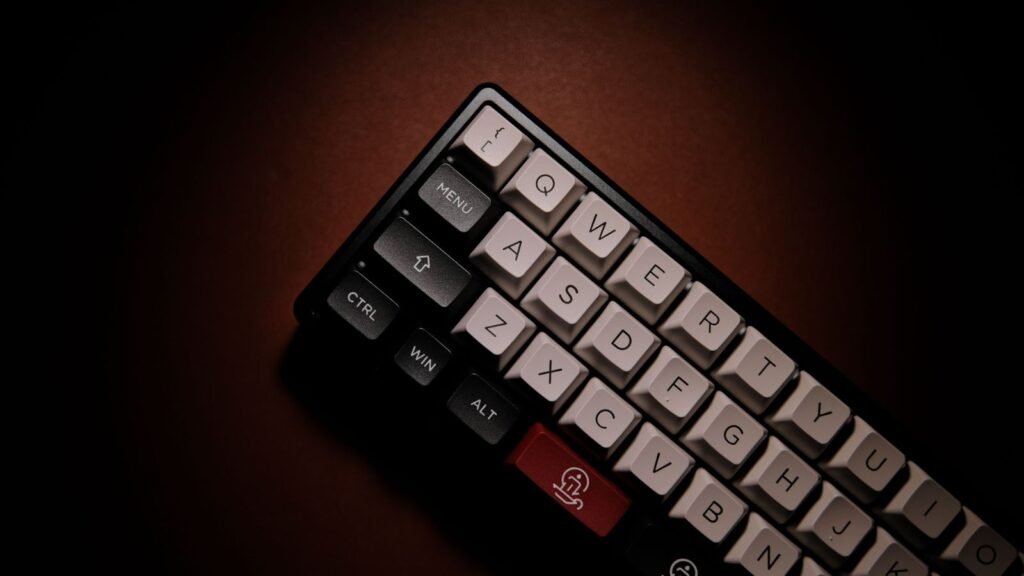
Once the keys behave correctly, the printed legends can still say Win and Alt. Mac keycaps for a mechanical keyboard are sold as small modifier sets with ⌘ and ⌥ symbols. Check two things before buying: the stem type (most boards use MX-style cross stems; low-profile boards often need their own caps) and the key sizes in your bottom row, since some boards use 1.25u modifiers and others 1u.
Keycap material affects feel and sound too. PBT (a hard, textured plastic) resists the shiny wear that ABS caps develop over time. You can hear how keycap material changes the sound in our simulator’s sound guide.
Macro Keys and Programming
A mechanical keyboard with macro keys lets one press trigger a shortcut chain, such as a screenshot to clipboard or a text snippet. You don’t always need dedicated extra keys: most Mac-friendly boards let you program macros onto layers. Keychron uses QMK firmware and its browser-based Keychron Launcher. Lofree’s Flow 2 supports QMK and VIA. Kinesis’s Clique tool runs in Chrome or Edge and supports up to 8 layers with no driver to install. Logitech uses Logi Options+, which runs on macOS.
Browser-based tools suit Macs because there’s no background app to approve, though Clique needs Chrome or Edge rather than Safari.
Bluetooth and Multi-Device for Apple Desks
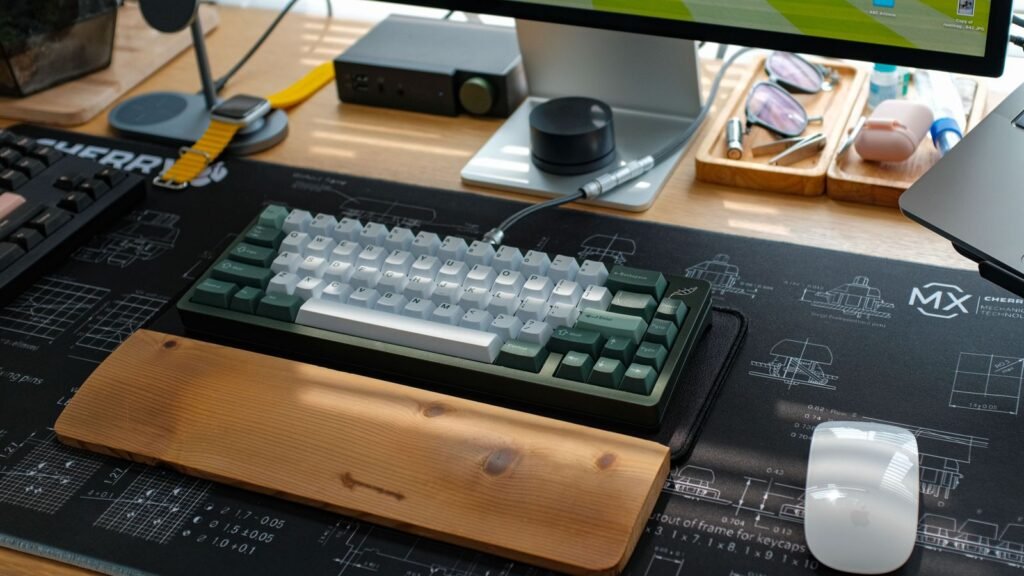
Apple users rarely own just one device. A typical desk might have a MacBook, an iPad and an iPhone within reach, so Bluetooth multi-device pairing is one of the most useful features on a Mac keyboard. You press a key to jump from typing an email on the Mac to replying to a message on the iPhone.
Here’s what to look for:
- Device slots. The Logitech MX Mechanical Mini for Mac pairs with up to three devices. The Keychron K2 Max also stores three Bluetooth devices. The Kinesis mWave for Mac switches between two.
- 2.4 GHz option. A USB dongle gives a faster, steadier link than Bluetooth. Polling rate (how often the board reports key presses to the computer) is usually 1000 Hz over 2.4 GHz and wired, versus about 125 Hz over Bluetooth. NuPhy lists exactly that split for the Air75 V3. For typing you won’t notice; for gaming you might. Newer MacBooks only have USB-C ports, so check whether the dongle is USB-A and plan for an adapter.
- Battery life and backlight. Lighting drains batteries fast. Logitech quotes up to 15 days with backlighting on and up to 10 months with it off for the MX Mechanical Mini for Mac. The mWave runs on two AA batteries rated for about 18 months, but its backlight only works when the cable is plugged in.
- Wired fallback. A USB-C cable is handy for charging and for any moment Bluetooth misbehaves, such as typing a FileVault password at startup.
Size, Switches, and Profile for Mac Users
Mac users tend to care about desk space and a clean look, which pushes most of them toward compact layouts. Here’s how the common sizes compare:
- Full-size (about 104 keys): includes a number pad. Good for spreadsheets and data entry, but wide.
- TKL (tenkeyless): full-size minus the number pad. Plenty of room for the mouse.
- 75%: keeps the function row and arrow keys but squeezes the navigation cluster into a column. A mechanical keyboard 75% Mac layout is close to the width of a MacBook keyboard, which makes it a natural fit for Mac setups.
- 65%: drops the function row. Compact, but you’ll lean on the Fn layer for brightness and media.
Low Profile or Full Height
If you’re coming from a MacBook, a low-profile board will feel most familiar. Low-profile switches have shorter travel and the keyboard sits lower, so you can often skip a wrist rest. The Logitech MX Mechanical Mini for Mac, NuPhy Air75 V3, Lofree Flow 2 and Kinesis mWave all use low-profile switches. Our guide to low-profile mechanical keyboards covers the trade-offs in depth.
Full-height boards like the Keychron K2 Max give you a far bigger choice of switches and keycaps, and usually a deeper sound. They’re taller, so many people add a wrist rest.
Switch Types
Linear switches move straight down with no bump. Tactile switches have a small bump that tells your finger the key has registered. Clicky switches add an audible click on top, which coworkers on video calls may not love. For long typing sessions, many Mac users settle on a quiet tactile or a light linear. You can hear linear vs tactile switches side by side in KeySim before committing, or compare switch sounds across all 20 switch types.
Popular Mac-Friendly Mechanical Boards
These models are grouped by the kind of Mac user they suit. We did not physically test them. The picks are based on manufacturer specifications, Mac-specific features and the consensus of recent reputable reviews and owner feedback. Check current switch options on each maker’s site, since configurations change.
For a MacBook on the Go: Logitech MX Mechanical Mini for Mac
This is one of the few mechanical boards made specifically for Apple users by a major brand. It has Mac legends, Tactile Quiet low-profile switches, Bluetooth for up to three devices and smart backlighting that wakes as your hands approach, per Logitech’s product page. It’s a strong mechanical keyboard for MacBook users who want the familiar feel. The switches are fixed, so it isn’t for tinkerers. Expect around $130 to $160.
For Mac and PC Households: Keychron K2 Max
The K2 Max is a 75% board with full-height switches, a Mac/Windows system toggle, both sets of keycaps and three connection modes (2.4 GHz, Bluetooth and wired). A hot-swappable version accepts 3-pin and 5-pin MX-style switches, so you can change switches later without soldering. QMK firmware and the Keychron Launcher web app handle remapping and macros.
For a Slim, Hot-Swap 75%: NuPhy Air75 V3
The Air75 V3 is a low-profile 75% with hot-swappable Gateron low-profile switches and 2.4 GHz, Bluetooth and wired modes. Tom’s Guide’s review lists macOS among its supported systems and found it ideal for productivity. It’s a good match if you want MacBook-like height but the freedom to change switches.
For Writers and Quiet Offices: Lofree Flow 2
A mechanical keyboard for writers on Mac should be quiet, comfortable for hours and pleasant to look at. The Flow 2 has an aluminum case, a gasket mount (the plate sits on soft gaskets for a cushioned feel) and comes in 65%, 75% and 96% sizes. MacSources noted it feels familiar to people moving from Apple’s Magic Keyboard. Tom’s Guide flagged some ricochet noise on hard keystrokes, so heavy typists should keep that in mind.
For Ergonomics: Kinesis mWave for Mac
If wrist comfort is your priority, the mWave for Mac takes the curved, wave-shaped design of the discontinued Microsoft Sculpt and adds mechanical switches and Mac keys. You can choose Gateron low-profile Quiet Red linear switches at 45 g or Brown tactile at 55 g. It has 12 macOS hotkeys, a keypad on its Fn layer and Clique for remapping. For fully separated halves, see our guide to split mechanical keyboards.
For a Wired, Full-Size Desk: Das Keyboard 4 Professional for Mac
The Das Keyboard 4 Professional for Mac is a full-size, wired board with a Mac layout, an anodized aluminum top, Cherry MX switches, a two-port USB hub and a big volume knob. It has no backlight. It suits anyone who wants a number pad and never moves their keyboard. Expect around $200.
For a Simple Bluetooth Option: Macally Mechanical Mac Keyboard
Macally, a long-running Mac accessory brand, sells an 84-key Bluetooth mechanical Mac keyboard (model BTBLMBSMINIA) with blue switches, a backlight and USB-C charging. It’s a straightforward choice if you want Mac-labeled keys without configuration software. Blue switches are usually the loudest family, so confirm the switch feel before using it in a shared office.
See Best Mac Picks and Choose Your Board
This page covers the whole category. If you want a shorter, ranked list, our best mechanical keyboards guide picks favorites across budgets and uses.
To narrow it down quickly, answer three questions:
- Do you only use Macs? Choose a board with Mac legends. If you also use a PC, choose one with a Mac/Windows toggle and both keycap sets.
- Do you want MacBook-like height? Choose low profile. If you want more switch and sound options, choose full height.
- Will you ever change switches? If yes, insist on hot-swap.
Before you decide, spend a few minutes in the typing test with different switch types and build options to find what you enjoy hearing for hours.
Frequently Asked Questions
Do Mechanical Keyboards Work With Mac?
Yes. Any mechanical keyboard that connects by USB or Bluetooth will type on macOS without drivers. Windows-layout boards may have Command and Option in the wrong order and F-keys that don’t control brightness or media, but you can swap modifiers in System Settings, and Mac-layout boards avoid the issue entirely.
Which Mechanical Keyboard Is Best for MacBook?
It depends on how you use your MacBook. For a portable, low-profile board with Mac legends and three-device Bluetooth, the Logitech MX Mechanical Mini for Mac and NuPhy Air75 V3 are common picks, while the Keychron K2 Max suits people who also use a PC. Our separate best mechanical keyboards guide ranks favorites.
How do I swap Command and Option on a mechanical keyboard?
Open System Settings, choose Keyboard, click Keyboard Shortcuts, then Modifier Keys. Select your external keyboard from the menu, then set Option to Command and Command to Option. The change only applies to that keyboard, so your MacBook’s built-in keys stay normal.
Can a mechanical keyboard use Touch ID on a Mac?
No third-party mechanical keyboard includes Touch ID, which Apple only builds into its own Magic Keyboard and MacBooks. With a MacBook open you can still use the laptop’s sensor, or let a paired Apple Watch sign you in.
Is a 75% keyboard good for a Mac?
For most Mac users, yes. A 75% layout keeps the function row for brightness and media plus dedicated arrow keys, while staying compact and close to the width of a MacBook keyboard. You only lose the number pad and some navigation keys.
Do I need special software to use a mechanical keyboard on Mac?
No for basic typing, but software helps with remapping and macros. Logitech uses Logi Options+ on macOS, while Keychron, Lofree and Kinesis use browser-based tools such as Keychron Launcher, VIA and Clique, so nothing extra has to be installed.
What switches are best for writing on a Mac?
Quiet tactile and light linear switches are popular for long writing sessions because they’re comfortable and don’t disturb others. Clicky switches give strong feedback but are loud on calls and in shared rooms.
Open the simulator, pick a tactile switch, then add foam and PBT keycaps to hear how a quieter Mac desk build sounds compared with a clicky switch.